

The Cisco Meraki integration lets the Sign In Captive Portal work on Meraki wireless networks without any additional hardware. The two sides meet over RADIUS: Netgraph is the RADIUS server, Meraki is the client. How the two are wired together depends on the Meraki Deployment Type you pick on the Context:Documentation Index
Fetch the complete documentation index at: https://wiki.netgraph-connect.com/llms.txt
Use this file to discover all available pages before exploring further.
- MAC-based Access Control (MAB) — Meraki performs MAC authentication against Netgraph’s RADIUS service, and the guest lands on a Cisco ISE-style splash page. Optionally, you can layer a Managed Pre-Shared Key on top so the SSID is encrypted with a venue-wide PSK.
- Splash Page via RADIUS Server (CoA) — Meraki uses “Sign-on with my RADIUS server”, a Custom Splash URL that points at Netgraph, and (optionally) the Meraki Location and Scanning Integration.
Prerequisites
- A Cisco Meraki organisation with admin access to the Meraki Network you want Sign In to serve, and at least one SSID available for guest traffic.
- MR-series Access Points (and Meraki MX security appliances for CoA deployments that include them).
- The Sign-In Context’s Network Integration includes Cisco Meraki (chosen at Context creation or under Network Settings afterwards).
1. Enable the Meraki integration
Open Service Integration → Enabled integrations in the Sign-In Context admin and turn on Meraki Integration Enabled. Save with Update Settings. A new Meraki entry appears in the left nav with Settings and Access Points under it.If only Meraki integration is used on this Context, leave
Service Gateway Enabled off.
2. Pick a Meraki Deployment Type
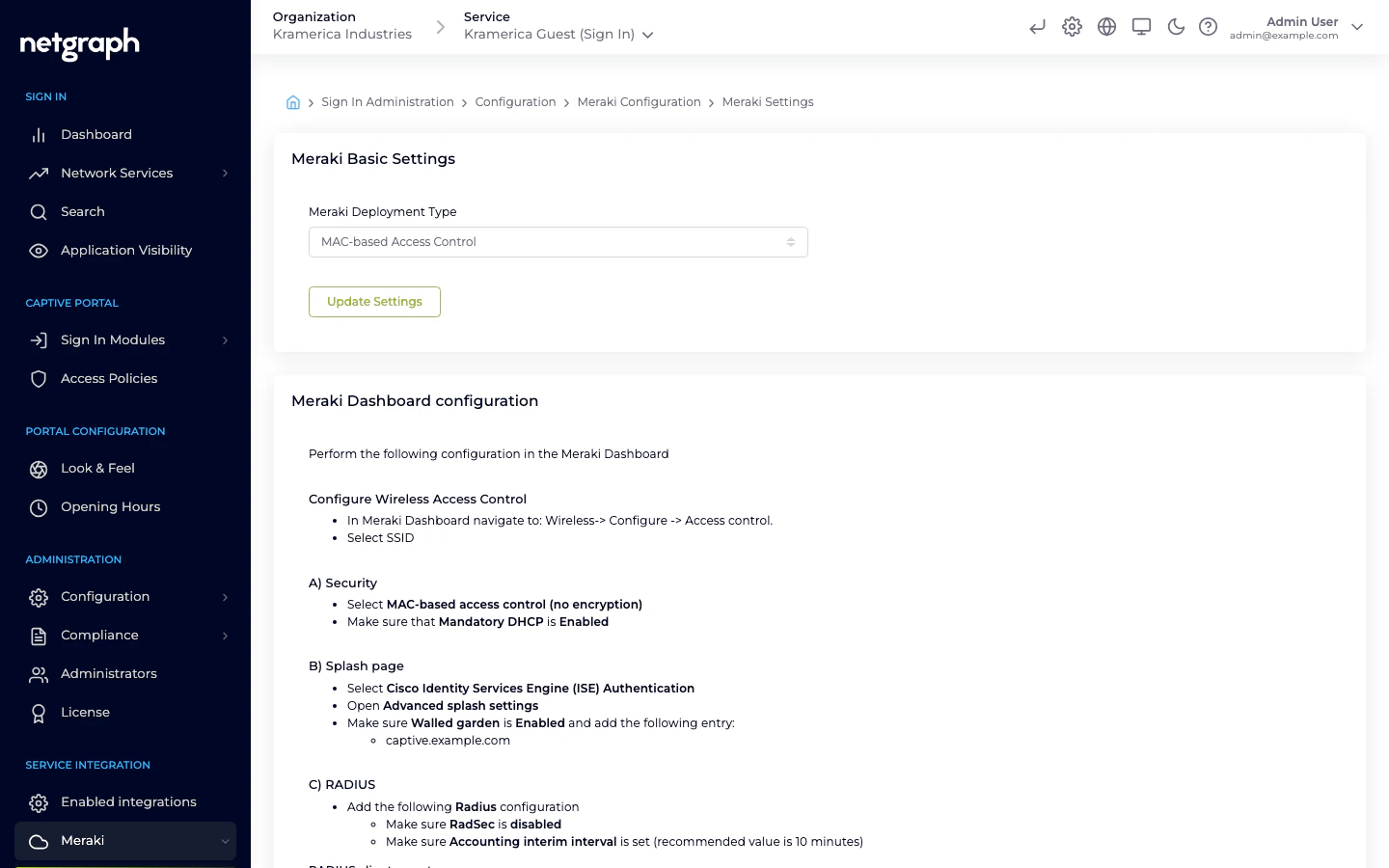
Open Service Integration → Meraki → Settings. The Meraki Basic Settings card has one dropdown:- MAC-based Access Control — the MAB flow. Cards below the dropdown show the Meraki-Dashboard steps for this deployment and an optional Managed Pre-Shared Key card.
- Splash Page via RADIUS Server — the CoA flow. A second dropdown (Meraki CoA setup) asks whether the venue has Only Meraki AP, Only Meraki MX, or a Mixed Deployment (both AP and MX).
3a. MAB — MAC-based Access Control
The MAB flow is the shorter path: Meraki does MAC authentication against Netgraph’s RADIUS service and the guest lands on an ISE Authentication splash page. The Netgraph admin shows you exactly what to configure in the Meraki Dashboard — mirror each value from the Meraki Dashboard configuration card on the right.In the Netgraph admin
Set the RADIUS client secret
In the Meraki Dashboard configuration card, enter a strong
RADIUS client secret and click Update RADIUS client secret.
This is the shared credential Meraki will use to reach Netgraph.
In the Meraki Dashboard
Navigate to Wireless → Configure → Access control and pick the guest SSID, then:Security
Set Security to MAC-based access control (no encryption).
Ensure Mandatory DHCP is Enabled.
Splash page
Set Splash page to Cisco Identity Services Engine (ISE)
Authentication.Netgraph uses the same implementation as Cisco ISE to handle the
authentication.
Walled garden
Open Advanced splash settings, enable Walled garden, and
add the domain shown in the Netgraph admin. Select Block all
access until sign-on is complete.
RADIUS and RADIUS accounting
Under RADIUS, add each row from the Netgraph admin’s RADIUS
servers and RADIUS accounting servers tables — host, port, and
secret. Ensure RadSec is disabled, and set an
Accounting interim interval (Netgraph recommends ~10 minutes).
Called-station-ID
Under Advanced RADIUS settings, add AP Name to the
Called-station-ID category list. Sign In uses this value to
identify which Access Point a guest is connected to.
3b. MAB with a Managed Pre-Shared Key (optional)
When you want the SSID encrypted but still want MAC-based authentication through Netgraph, layer a Managed PSK on top of the MAB flow.In the Netgraph admin
The Setting Up Meraki with Pre-Shared Key and MAC-Based Access Control (optional) card appears below the main settings when Meraki Deployment Type is set to MAC-based Access Control.Enter the Managed Pre-Shared Key
Type the PSK into Managed Pre-Shared Key (PSK). The field is
masked by default; click the eye icon to reveal while typing.
In the Meraki Dashboard
Follow the same steps as the plain MAB flow above, with one change:- Security: select Identity PSK with RADIUS instead of MAC-based access control (no encryption). Mandatory DHCP stays on.
3c. CoA — Splash Page via RADIUS Server
The CoA flow uses Meraki’s “Sign-on with my RADIUS server” splash option and a Custom Splash URL that points at Netgraph. The guest sees the Sign In Captive Portal rendered by Netgraph (rather than the ISE-style splash).In the Netgraph admin
Pick the Meraki CoA setup
Under Meraki CoA setup, pick Only Meraki AP, Only
Meraki MX, or Mixed Deployment (both AP and MX) — the
Meraki-Dashboard steps shown below adjust to match.
In the Meraki Dashboard
Sign-on with my RADIUS server
Under Wireless → Access control → Splash page, pick my
RADIUS server from the Sign-on with dropdown.
Add RADIUS servers
Under Wireless → Access control → Radius, add the servers and
accounting servers from the Netgraph admin. Set
Enable data-carrier detect to DCD is disabled.
Enable the walled garden
Under Wireless → Access control → Walled Garden, add the
walled-garden domain the Netgraph admin shows.
Custom Splash URL
Under Wireless → Splash Page → Custom Splash URL, paste in
the Custom Splash URL value from Netgraph.
Optional: Location and Scanning Integration (CoA only)
Meraki’s Location and Scanning Integration lets Netgraph see which clients are active on which SSID. It is configurable from the Meraki Location and Scanning Integration card on the same Settings page.Activate scanning in the Meraki Dashboard
Under Network-wide → General → Location and scanning, set
Analytics to Analytics enabled and Scanning API to
Scanning API enabled.
Exchange the Validator
Copy the Validator value from the Meraki Dashboard and paste
it into Your Meraki Organisation Validator Key in the
Netgraph admin.
Add a Post URL in Meraki
Back in the Meraki Dashboard, Add a Post URL with:
- POST URL — the value shown in the Netgraph admin.
- Secret — the scanning secret shown in the Netgraph admin (regeneratable from the button next to it).
- API Version — V3.
- Radio Type — Wifi.
Set the scanning SSID
Back in the Netgraph admin, enter the Guest Network Meraki
SSID — clients are counted as online when they appear on this
SSID.
4. Access Points
Under Service Integration → Meraki → Access Points, the admin shows the Meraki APs registered to this Sign-In Context, a trend chart of Registered Access Points and Access Point License counts, and a Batch Upload button for bulk onboarding. The Meraki Access Point license registration card on the Settings page has an Enable automatic registration of Access Points toggle — when on, APs register (and claim a license) automatically as they appear. Turn it off to maintain the Access Points list manually. Access Points are identified by MAC address. That MAC is also what Site-based redirects match on for CoA deployments — assign APs to a Site to steer guests to venue-specific landing pages.Compared to Service Gateway
| Aspect | Cisco Meraki | Cisco Service Gateway |
|---|---|---|
| Hardware | None extra (Meraki APs already in place) | Cisco Catalyst / IOS-XE / SD-WAN router |
| Who hands out IPs | Meraki | The Service Gateway |
| How the Captive Portal is reached | Meraki Custom Splash URL (CoA) or ISE splash page (MAB) | DHCP Option 114 / probe redirect via the Service Gateway |
| Deep-packet inspection | Not available | Available (Application Visibility) |
| Best for | Meraki-only venues | Venues standardised on Cisco routing |
Related
Service Gateway
Router-based deployment for non-Meraki or hybrid venues.
Site-based redirects
Use Meraki AP MACs to steer guests to venue-specific landing pages.