

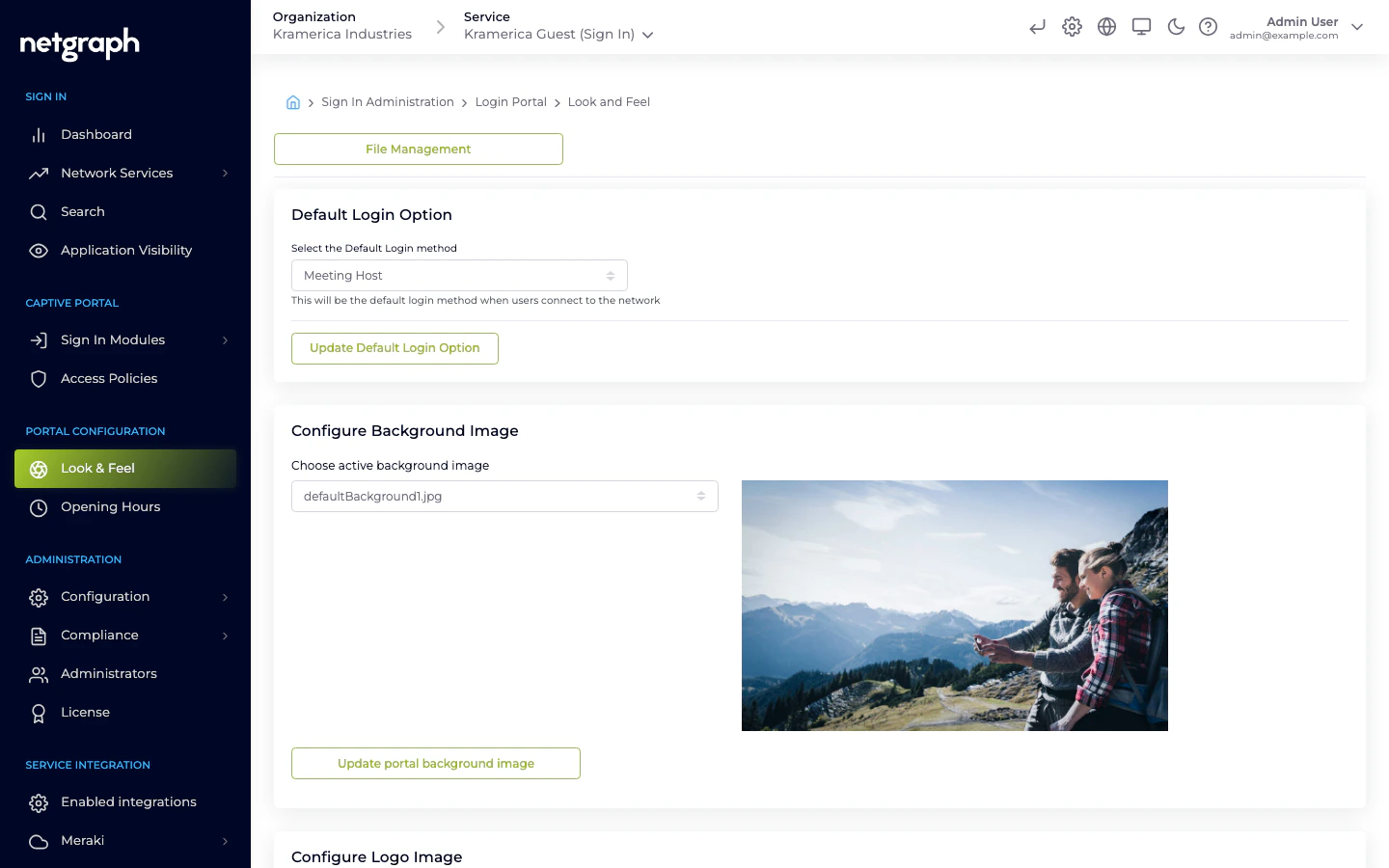
Every Sign-In Context has one Captive Portal. Look & Feel is where you shape how that portal looks to guests — logo, fonts, colors, and the two shape switches (Form Type, Button Type) that set the overall mood of the page. Open Portal Configuration → Look & Feel from the Context admin.Documentation Index
Fetch the complete documentation index at: https://wiki.netgraph-connect.com/llms.txt
Use this file to discover all available pages before exploring further.
Auto-fill from your brand site
The first card on Look & Feel analyses your Organization’s homepage and proposes a starting look — colors, panel and button shape, logo, background, fonts, and the Display Organization Logo toggle — which you can then refine with the manual controls further down the page. The URL field is pre-populated with the Organization’s registered website when one is set; replace it with any other public URL to pull styling from that page instead.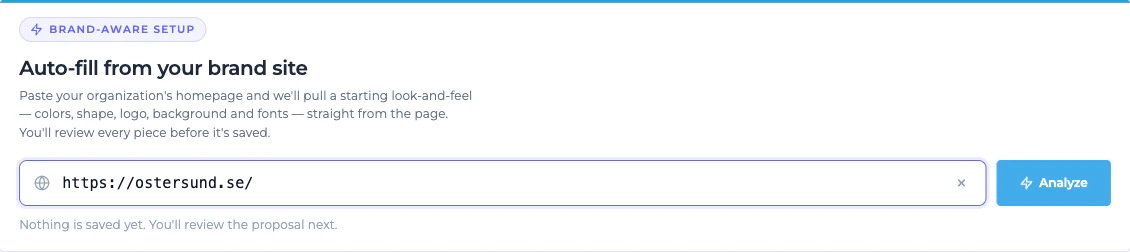
Enter a URL
Type the homepage URL you want to analyse into the URL field (for
example
https://www.your-brand.com). Analyze becomes active
once the value is a valid http:// or https:// address.Run the analysis
Click Analyze. The card displays a progress list covering the
four stages — reading the landing page, extracting colors and
fonts, selecting the best candidates, and preparing the images —
and typically completes within 30–60 seconds. Click Cancel at
any point to stop the run; no changes are made.
Review the proposal
Once the analysis completes, the card switches to a Proposal
ready view with six sections — Color palette, Panel &
button shape, Logo, Background, Fonts, and
Options (the Display Organization Logo toggle). A live
preview of the Captive Portal using the proposed values appears
on the right.
Select sections to apply
Each section has a checkbox; clear the checkbox for any section
you do not want to apply. For Logo and Background, a
thumbnail row beneath the primary pick lets you swap it for one
of the alternatives the analyser identified.
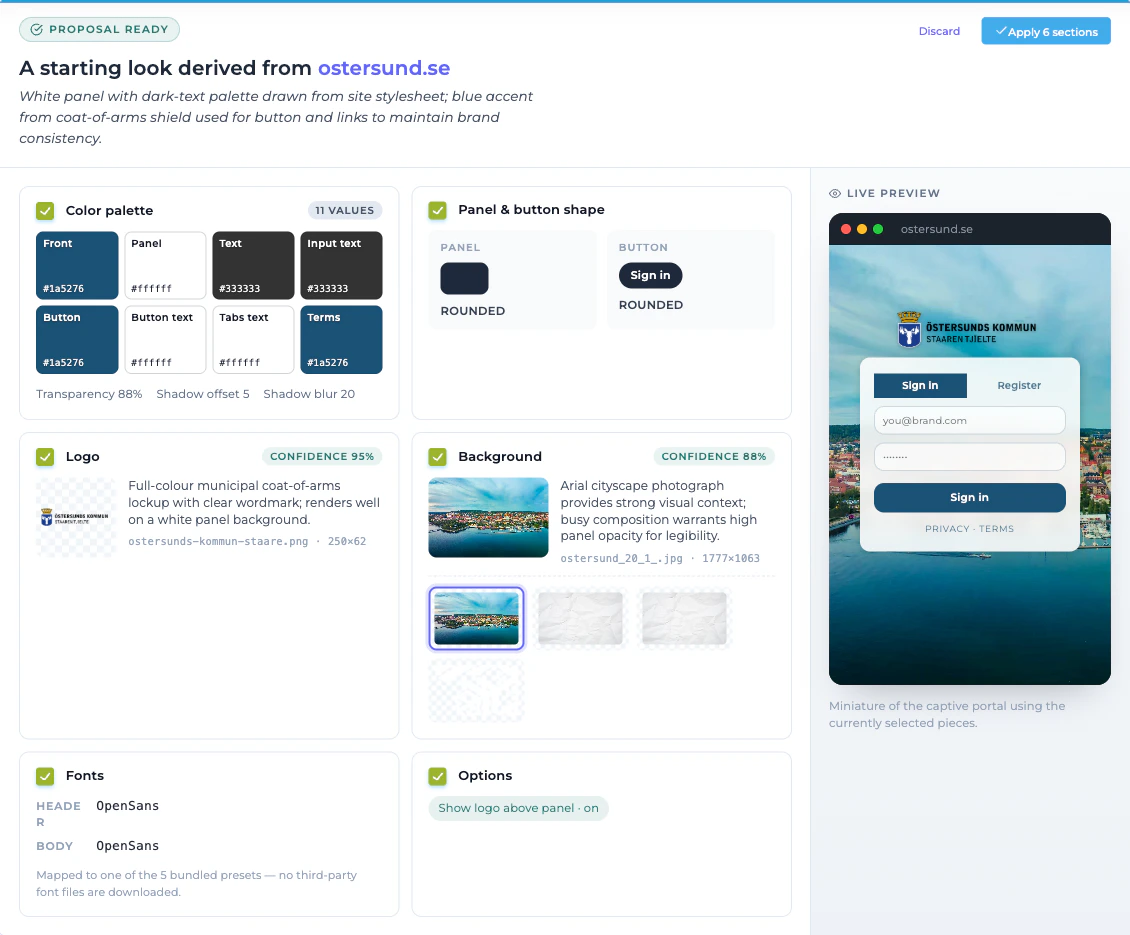
Nothing is saved to the Context until you click Apply. Fonts
are mapped to the five bundled font presets. Every applied value
remains editable from the manual cards below.
- Timed out reaching the website
- TLS/certificate problem reaching the website
- This site is blocking automated access (HTTP 429/403). Try again later or upload assets manually.
- Couldn’t pull a starting look from this page. Try another URL — or configure the look and feel manually below.
File Management
The logo, fonts and background image are picked from a library of files you’ve uploaded previously. Use File Management (button at the top of Look & Feel) to upload:- Logos — PNG, SVG, or JPG. Transparent backgrounds usually look best.
- Fonts —
.woff,.woff2, or.ttf. - Background images — JPG or PNG, full-page. The portal blurs the edges slightly; center-safe compositions work best.
Default Login Option
- Select the Default Login method — the sign-in method that opens first when guests hit the portal. Changing this doesn’t hide other methods; it only controls which tab is active by default.
Configure Background Image
- Choose active background image — pick one of the uploaded images. The preview thumbnail shows what will render behind the sign-in card.
Configure Logo Image
- Display Organization Logo — toggle whether a logo is shown above the sign-in form.
- Choose active Logo image — select the uploaded logo.
Configure Font
- Header Font — used for headings and the welcome text.
- Main Font — used for body text and form fields.
Configure Login Portal colors & buttons
Two groups sit inside this section: Panel configuration (the sign-in card itself) and Login button configuration. Both save together with the single Update Colors and Buttons button at the bottom.Panel configuration
| Setting | Applies to | Default |
|---|---|---|
| Choose Form Type | Sign-in card shape — Square or Rounded. | — |
| Text Color | Body text on the sign-in form. | #000e1e |
| Input Text Color | Text the guest types into form fields. | #555555 |
| Tabs Text Color | Labels on the login-method tabs. | #ffffff |
| Front Color | Tabs and links color. | #000e1e |
| Terms Color | Privacy Policy / Terms and Conditions link color. | #000e1e |
| Background Color | Tabs and panels background color. | #ffffff |
| Background Opacity (%) | 0 to 100 — how much the background image bleeds through the card. | 64 |
| Shadow Offset | Button and input form shadow offset. | 0 |
| Shadow Blur | Button and input form shadow blur. | 4 |
Login button configuration
| Setting | Applies to | Default |
|---|---|---|
| Choose Button Type | Button shape — Square or Rounded. | — |
| Button Color | Sign-in button background. | #000e1e |
| Button Text Color | Sign-in button text. | #000e1e |
Configure Portal Appearance
- Display simplified (no tabs) login portal if only one login option is selected — when a Context has just one active login method, this toggle hides the tab row and renders the single form full-width.
Per-language assets
Look & Feel settings apply across all languages. To change the text per language (welcome text, module labels, terms copy), see Languages.Preview the portal
Click the Captive Portal icon at the top of the admin header (hover to see the tooltip) to open the live portal in a new tab. Save Look & Feel changes first — the portal reads from the backend each time it loads.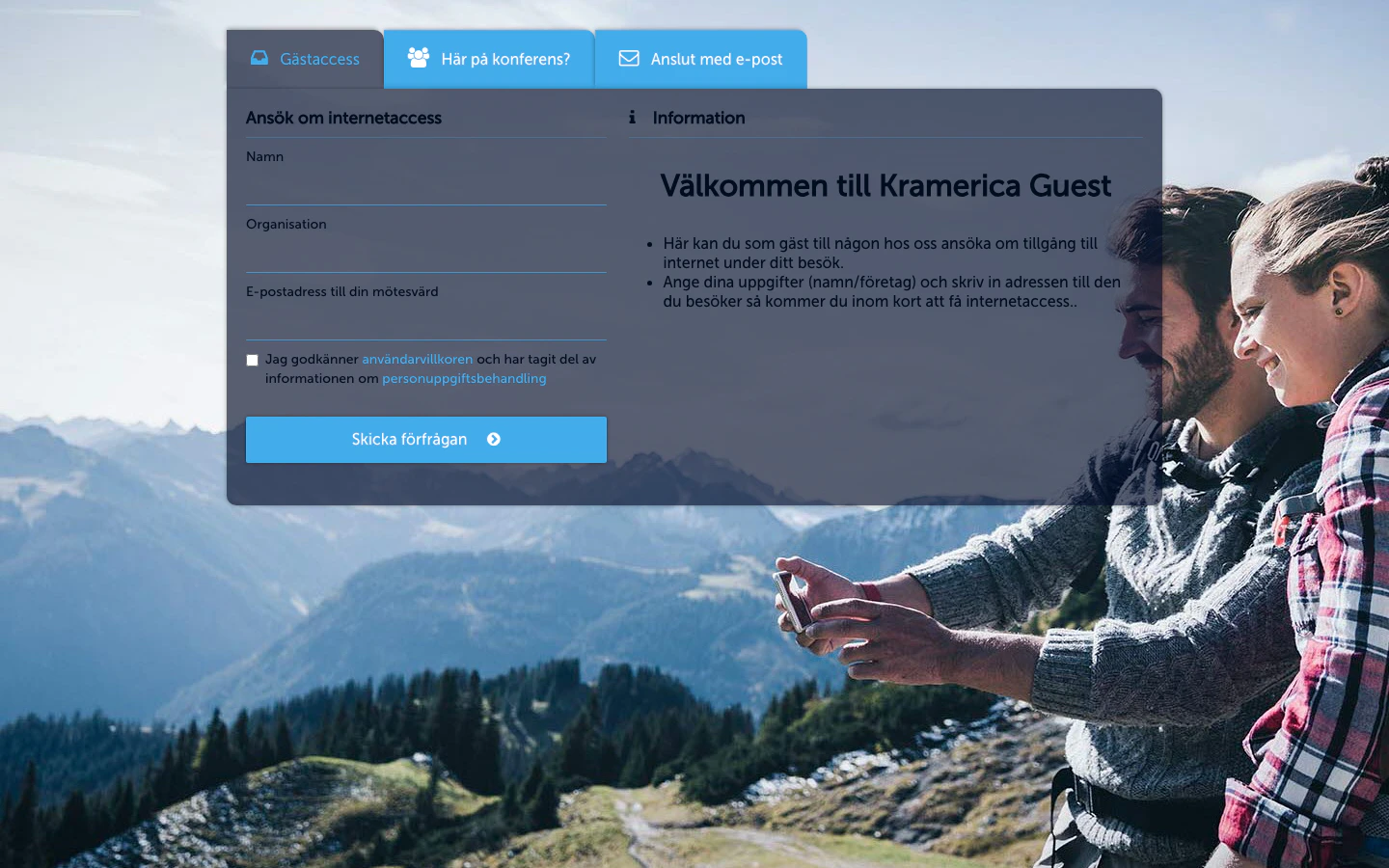
Next
Languages
Translate the portal and override specific strings per Organization.
Terms and conditions
Require guests to accept terms before granting access.